

How to Setup IPTV: Easy 5-Minute Setup Guide in Canada (2026)
How to Setup IPTV on Firestick, Smart TV & Android (2026 Guide)
Step-by-Step Installation for Samsung, Hisense, Firestick & Apple TV in Canada
📅 October 25, 2026
⏱️ 7 min read
👤 By NetIPTV Canada Support
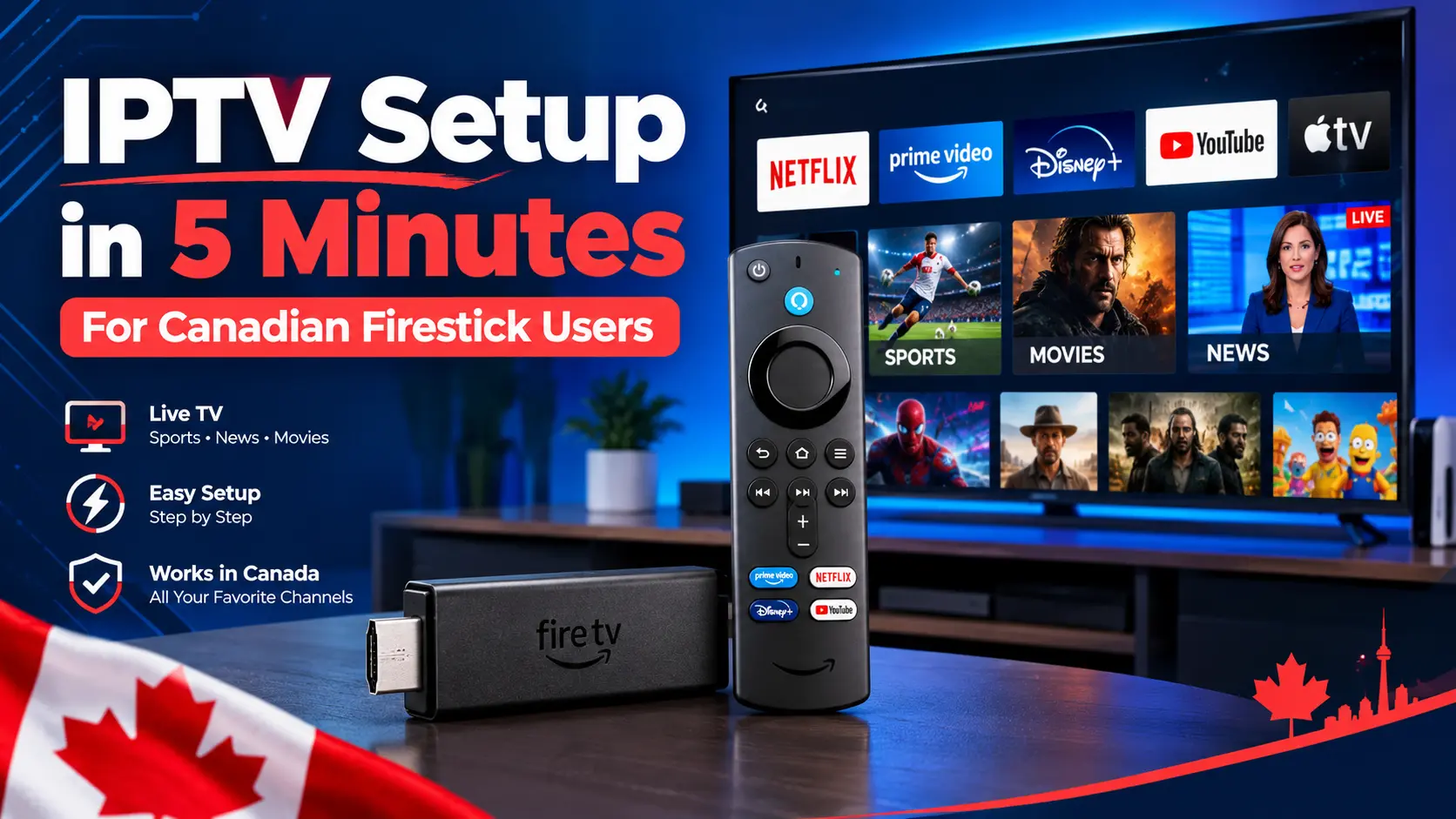
Learning how to setup IPTV on your TV or streaming device takes under 5 minutes. Whether you need to install an IPTV app on a Samsung Smart TV, configure a Hisense Smart TV, or sideload a Firestick, this comprehensive guide covers every major platform for Canadian cord-cutters. Knowing how to setup IPTV properly ensures smooth, 4K buffer-free playback across all your household devices.
📑 Table of Contents
How to Setup IPTV on Amazon Firestick
Amazon Firestick is the most popular streaming device in Canada. If you want to know how to setup IPTV on a Fire TV Stick 4K, Lite, or Cube, follow these steps:
- Go to Settings › My Fire TV › Developer Options. (For additional details, check official Amazon Fire TV Support).
- Turn ON Install Unknown Apps for the Downloader utility.
- Search for Downloader on the Amazon Appstore and install it.
- Launch Downloader, enter the code for TiviMate or IPTV Smarters Pro, and click Install.
How to Install IPTV App on Samsung Smart TV
If you own a Tizen OS television and want to learn how to setup IPTV and how to install IPTV on Samsung Smart TV models without external boxes, the Samsung App Store provides native streaming players:
- Press the Home button on your Samsung TV remote and open the Apps Store.
- Use the search icon to search for IBO Player, NET IPTV, or Smart IPTV.
- Select Install and open the player once downloaded.
- Note the MAC Address and Device Key displayed on your TV screen.
- Visit the player's official portal website on your phone or PC, enter your MAC address, and upload your NetIPTV M3U playlist link or Xtream Codes API credentials.
Note on Smart IPTV: If you are learning how to install Smart IPTV on Samsung Smart TV, remember that the Smart IPTV app offers a 7-day trial before requiring activation on its web portal.
How to Install IPTV on Hisense Smart TV
Hisense Smart TVs run on either **VIDAA OS** or **Google TV / Android TV**. Here is how to install IPTV on Hisense Smart TV based on your operating system:
For Hisense VIDAA OS TVs:
- Open the VIDAA App Store on your Hisense television.
- Search for IBO Player, SS IPTV, or C1 IPTV.
- Install the application and load your playlist credentials using the app's web portal.
For Hisense Google TV / Android TV Models:
- Open the native Google Play Store.
- Search directly for IPTV Smarters Pro or TiviMate.
- Download the app and log in using Xtream Codes.
Loading Your NetIPTV Credentials via Xtream Codes API
Regardless of which application you choose when figuring out how to setup IPTV and how to install IPTV on Smart TV setups, logging in with Xtream Codes API provides faster channel loading:
- Playlist Name: NetIPTV
- Username: (Provided in your NetIPTV welcome email)
- Password: (Provided in your NetIPTV welcome email)
- Server URL / Host: (Your activation portal address)
Ready to Test Your Smart TV Setup?
Start a 24-hour free trial with full access to 25,000+ live Canadian channels, TSN, Sportsnet, and 120,000+ VOD movies in 4K.
START FREE 24-HOUR TRIALFixing ISP Throttling on Bell, Rogers & Videotron Networks
If you experience buffering after learning how to setup IPTV during live sports broadcasts across Canadian ISPs, implement these performance fixes:
- Connect via Ethernet Cable: Use a wired LAN connection to your Smart TV rather than Wi-Fi whenever possible.
- Use 5GHz Wi-Fi Band: If wireless is required, connect your Smart TV or Firestick to the 5GHz frequency band.
- Adjust Video Buffer Settings: Set the playback buffer size to Medium or Large inside TiviMate or IPTV Smarters settings.
Frequently Asked Questions
How long does it take when learning how to setup IPTV on a Smart TV?
Downloading the app and entering your Xtream Codes credentials takes under 5 minutes on both Samsung Smart TV and Hisense Smart TV devices.
Do I need a separate cable box for every TV?
No hardware is needed. You can install an IPTV app directly on Samsung, LG, and Hisense Smart TVs or use a Firestick.